To bring a Visedra viewer into a digital brochure, use an image of the building with a link that opens it in the browser. In a printed flyer, add a QR code and a readable address. That keeps a PDF that is easy to share and offers a clear way to go from the document to the building in 3D.
The viewer does not run inside the PDF or inside an email. That distinction matters: a buyer may open the brochure on a phone, in a browser or in an app that does not support embedded 3D content. The image-plus-link route keeps a simple action in all of those scenarios.
Also for office interiors
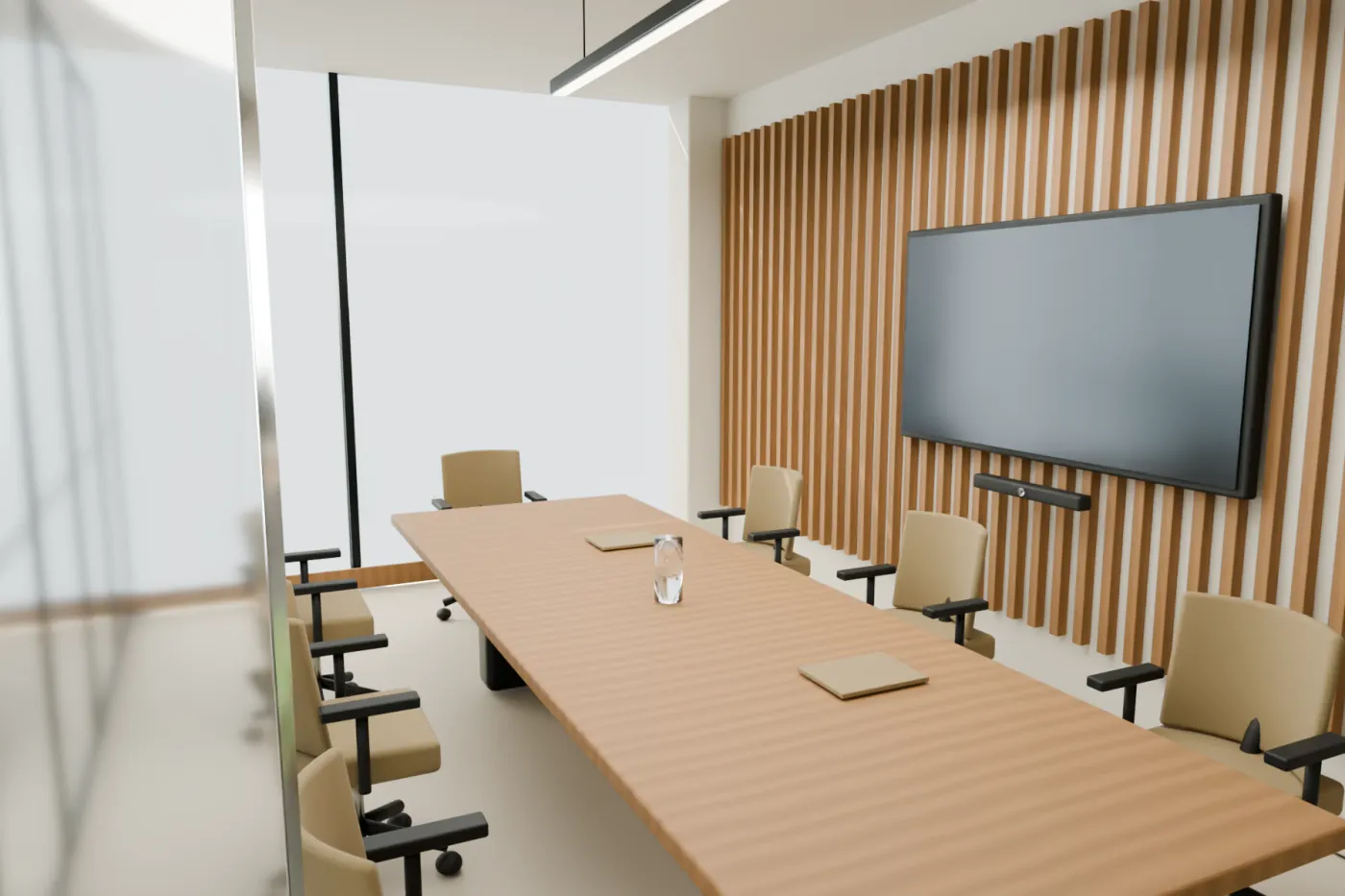
A brochure can also link to the interior proposal of an office. Place the access to the 3D next to the floor plan and use a specific label, such as “See the proposed layout”. Clarify whether the furniture and finishes come with the space or are a design idea.
Choose a view that explains why to open the 3D
The image must represent the building in the project and anticipate what the visitor will be able to explore. An overview usually helps place the whole. If the conversation focuses on the terraces or the entrance, use a view that makes them recognizable. Do not use a different concept image that promises an experience the viewer does not offer.
Pair the image with a specific sentence. “Explore the building exterior in 3D” explains the destination better than “Learn more”. If the link opens a specific view, you can say “See the entrance from another angle”. The reader should understand what will happen before tapping.
How to prepare the digital brochure
- Select an image from the viewer that matches the building and the contracted scope.
- Add a clearly identifiable button or link text. Link the image too if your layout tool allows it.
- Use the final delivery address. Avoid expiring test links or personal access the recipient should not receive.
- Export the document keeping its hyperlinks. Do not assume an image export will keep the links.
- Open the exported PDF and check the action. Repeat the test on a phone and in the program your team normally uses.
Include a text alternative near the image. A user who does not identify the button or who uses a screen reader needs an understandable link. The image should also carry a description when the editing tool supports accessible alternative text.
When to add a QR code
A QR code is useful when the document is printed or shown on a screen other than the phone. In a PDF that already opens on the phone, the link is usually more direct: do not force the prospect to scan a code that is on their own screen. You can include both, but each has its function.
- Encode the stable address of the viewer, not a personal private access.
- Pair the code with an explanation of the destination and, where feasible, a readable address.
- Leave clear space around the code and avoid low-contrast backgrounds.
- Test the result at real size, after exporting and after printing. There is no single size that works at every distance and on every material.
A QR code is one way of writing an address. It does not by itself prove the destination is still available or provide a complete usage measurement. If you subscribe to a dynamic QR service, check what happens if you stop paying for it. For a first brochure it is usually simpler to rely on a delivery address you have already agreed.
A PDF with a link and a 3D PDF are different deliveries
Adobe Acrobat has features to show 3D content inside certain PDFs and also applies trust controls to that content. That does not turn a web viewer into a 3D PDF or prove it will work in every reader. If someone offers you that format, ask for the actual file and test it in your recipients’ programs and devices.
Visedra recommends that the document serve as the doorway to the web viewer. The PDF holds your data, plans, photos and contact; the browser provides the interaction. They are complementary materials, and you can update the document without confusing that with a change to the model.
Before sending it to the buyer
| Check | Expected result |
|---|---|
| The destination | The correct building opens, not a demo unrelated to the project. |
| The access | The recipient can get in under the agreed conditions. |
| The initial view | It places the visitor and matches what the document announces. |
| The information | The indicative representation is identified where it applies. |
| Continuity | You know how long it will be hosted and what happens if it is not renewed. |
| The contact | The prospect knows how to request a tour or ask a question. |
A password does not replace the terms of use
If the material is confidential, agree on how it is shared before printing a QR code or sending the PDF. An authorized person can forward a link, take screenshots or access the data their browser needs. Define recipients and rights clearly.
How to use it after a tour
Send the brochure with a sentence that recalls what was discussed: for example, “On the exteriors page you have the link to review how the entrance relates to the terraces”. That is an example message, not a guarantee of a reply. The viewer makes more sense when it is tied to a question the prospect had than when it is added as an unexplained ornament.
Then record whether the sales team uses it and which questions come back. That observation helps choose better views or fix a confusing explanation. You do not need to build a complex tracking system to check whether the first viewer actually enters your conversations.
Leasing or selling an office or a building? We’ll tell you how we would show it.
Send the listing