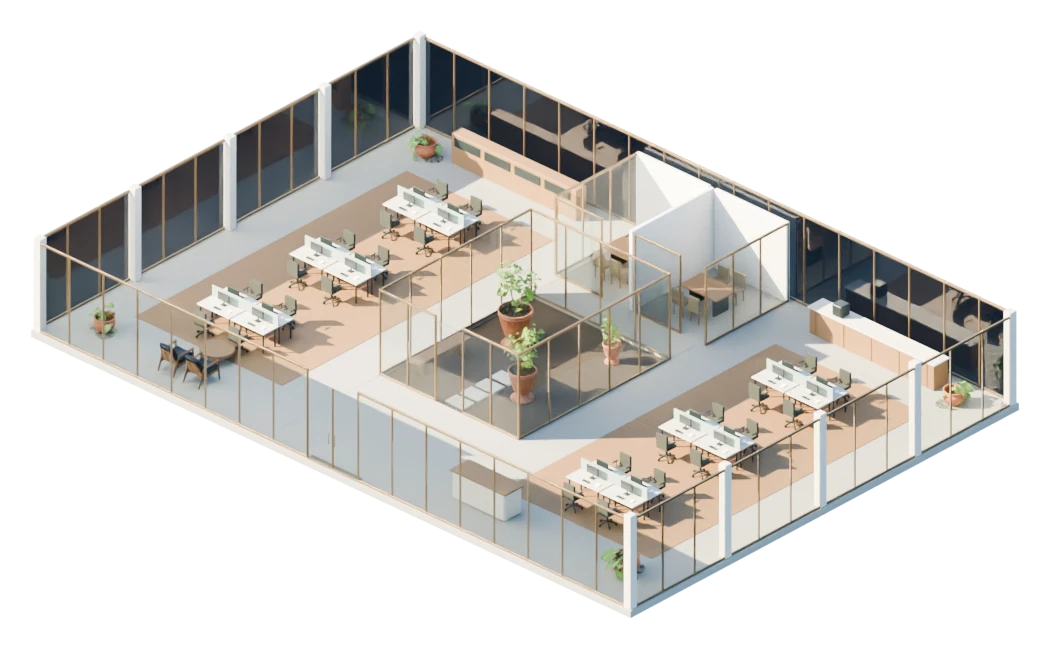
The prospect is already looking at the property on your website. Place the viewer of the exterior or the interior next to the photos, the floor plans and the broker’s contact. An interior layout helps explain workstations, rooms and common areas before the tour. Owners and brokers can use it on their websites under the agreed permissions. The integration is agreed after we review your site and the system you publish with.
How it looks inside a listing
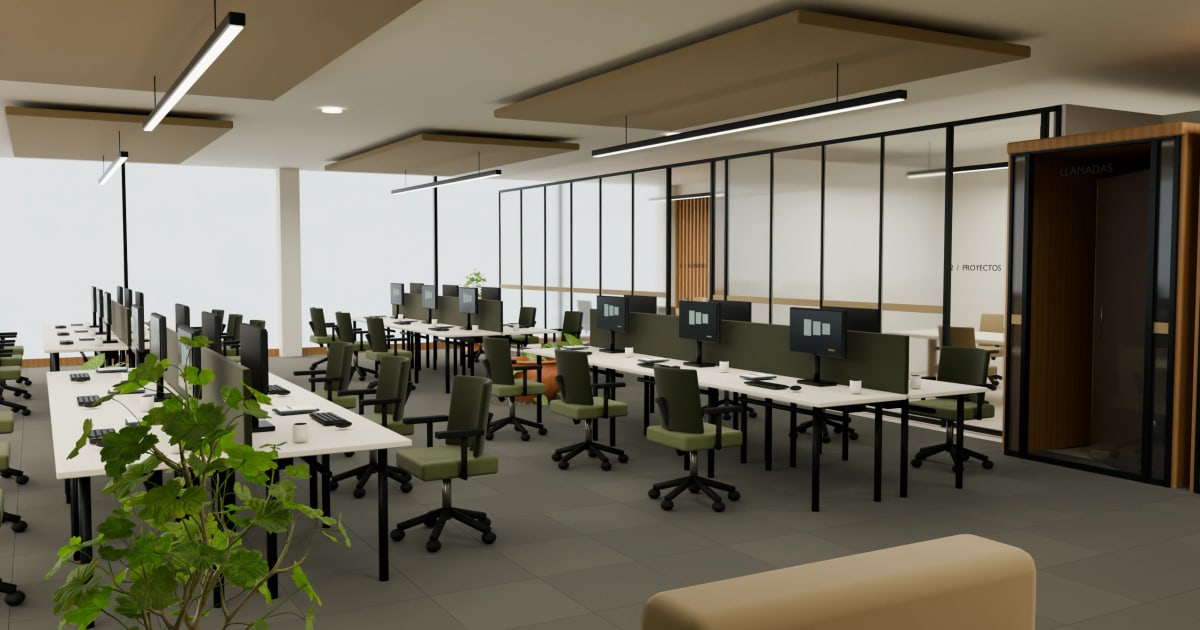
This listing is an example. The 3D block takes the place of one more photo and only downloads the model when the visitor asks for it, so the page stays light.
The code your website needs
The usual integration is an embedded block with the address of your viewer. Your web team places it in the listing template; we check the framing on desktop and mobile.
<!-- Visedra 3D block inside the property listing -->
<iframe src="https://visedra.com/v/your-property"
  title="3D property viewer" width="100%" height="560"
  loading="lazy" allow="fullscreen" style="border:0;border-radius:16px"></iframe>
<p><a href="https://visedra.com/v/your-property">Open the 3D in full screen</a></p>Each project gets its own address, ready to work inside your website. We recommend loading it behind a button, as in the listing above, so the 3D only downloads when someone wants to see it.
Choose how your prospect will open it
| Where you use it | How it works |
|---|---|
| Email, text or a meeting | A link opens the viewer in the browser. It is the simplest initial delivery. |
| Property website | An embedded block lets visitors explore the 3D inside the page when the content management system allows it. |
| PDF brochure | An image with a link leads to the viewer. The PDF keeps its usual format. |
| Printed brochure | A QR code and a readable address open it on a phone. |
| Your own server | A specific web delivery is assessed and tested on your infrastructure. |
An integration that supports the listing
The viewer needs enough room to use its controls, also on mobile. We recommend a preview image and a clear action to open the 3D. That way the visitor understands what to expect and does not need to download the model until they want to explore it inside a listing with other materials.
Keep the property description and the broker’s contact in view next to the 3D: whoever finishes the tour should be able to write to you right then.
What we check before embedding
- That your content management system accepts the required block and your website allows loading the viewer’s domain.
- That the framing, the size and the controls work on desktop and on a mobile screen size.
- That there is a link to open it outside the block if the browser or the page limits the experience.
- That the viewer is public or uses an access method compatible with the destination. A private presentation does not become embeddable by copying its address.
- That your web team has the code and the maintenance instructions.
Before we quote, we look at your website
A link or a button works on any website. To put the 3D inside the page, we first check your content management system. Where a listing portal does not allow embeds, you use the link in your listing text, brochure and replies to prospects.
If you need a file for your own server
If you would rather host it on your own server, we deliver the complete viewer, with its files and instructions. A GLB file on its own does not show with controls on a website, so what you get is the whole application. It is quoted separately, depending on where it goes.
The quickest way to start is the hosted link. You can add the integration on your website later, once you see where it helps most.
Leasing or selling an office or a building? Send us the listing and we will tell you how we would show it.